This guide provides step-by-step instructions for configuring SentinelOne Anti-Virus on your Mac. To comply with Apple’s native security architecture, certain local permissions must be granted manually by the user, as they cannot be managed remotely by system administrators. Following these steps ensures your device remains fully protected and compliant with security standards.
Step 1 – Authorize Full Disk Access
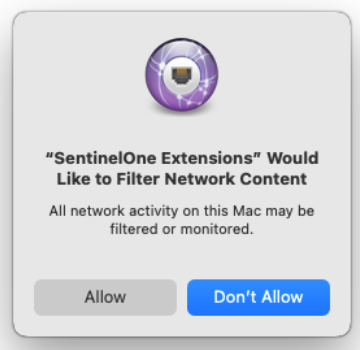
- After Install of the SentinelOne Agent you may see some notifications to allow permissions

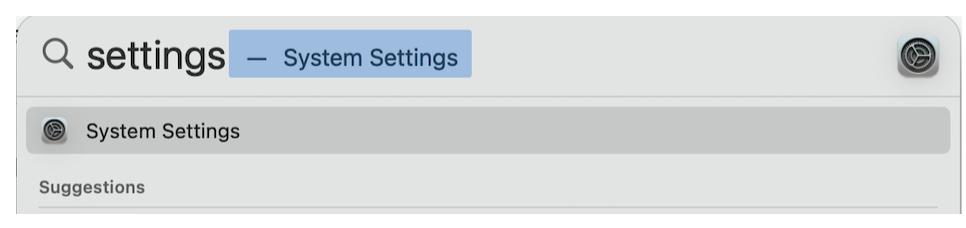
- Enter CMD + SPACE to open spotlight search and type Settings and then open System Settings
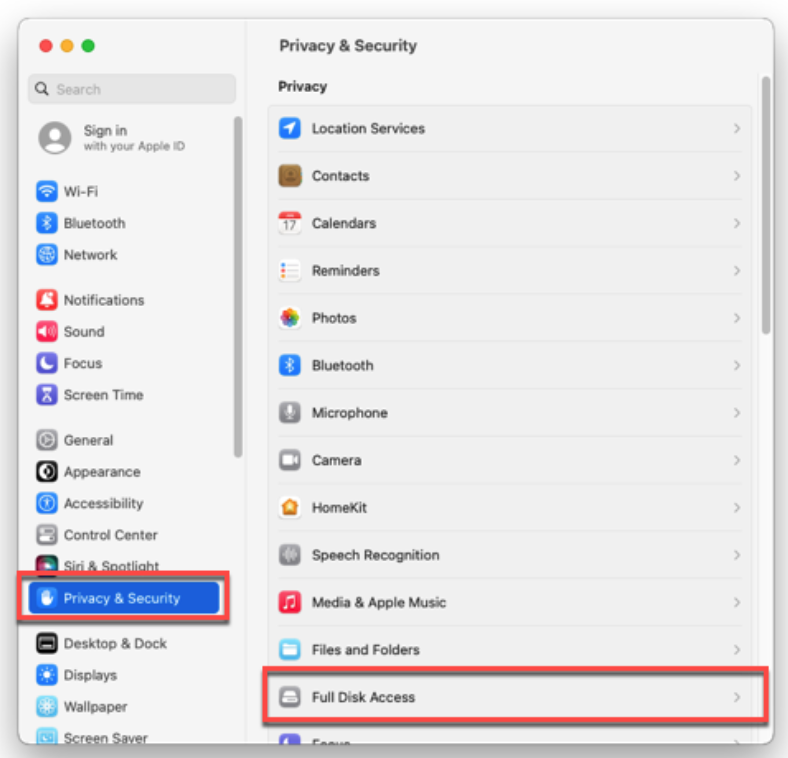
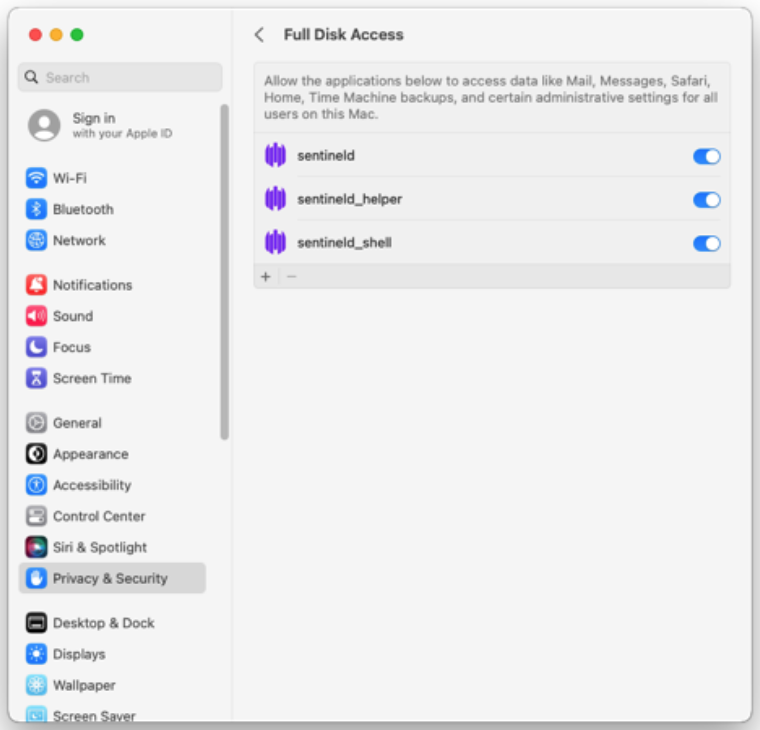
- Find Privacy & Security and select Full Disk Access
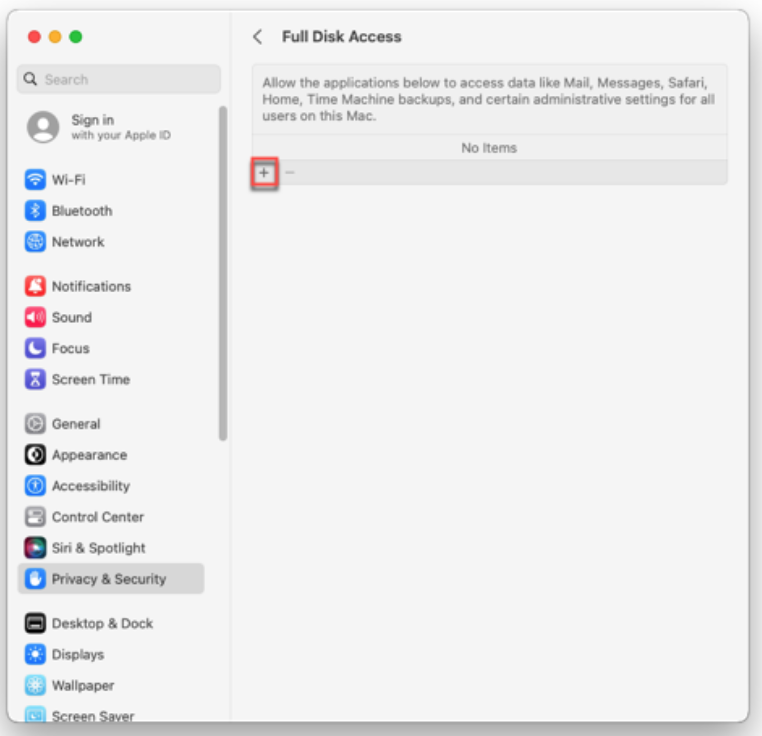
- Click the + button at the bottom of the Full Disk Access window
- Press and hold Command+Shift+G at the same time to open the Go to the folder menu.
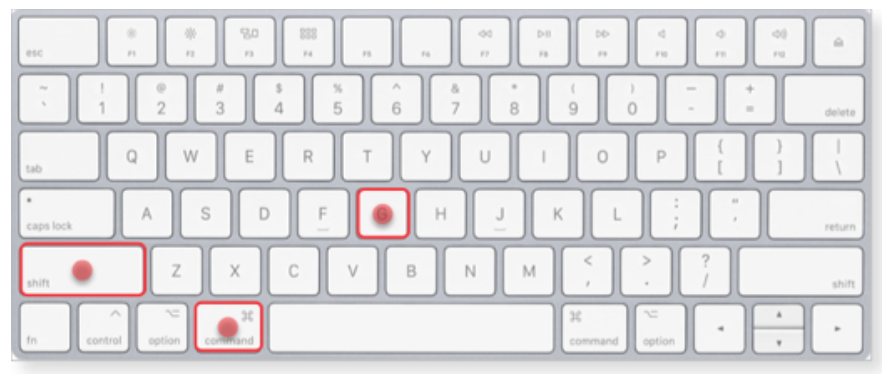
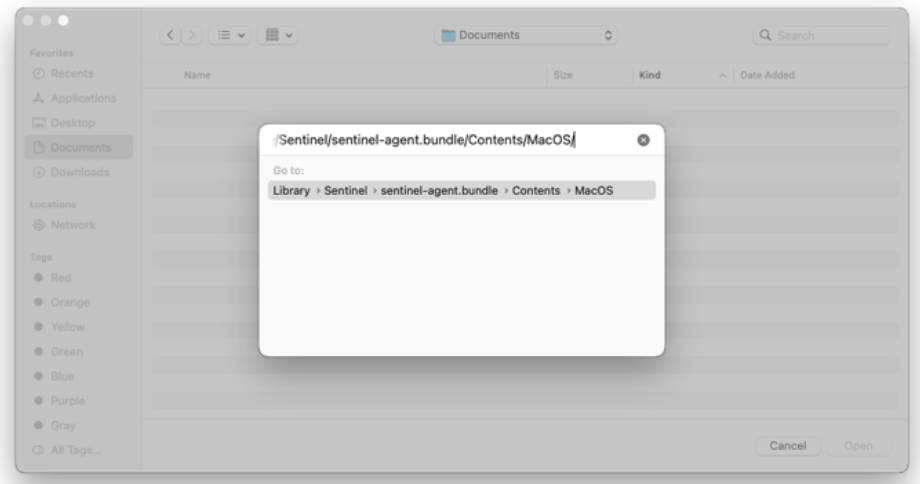
- Enter the path below into the Go to folder window:
/Library/Sentinel/sentinel-agent.bundle/Contents/MacOS/
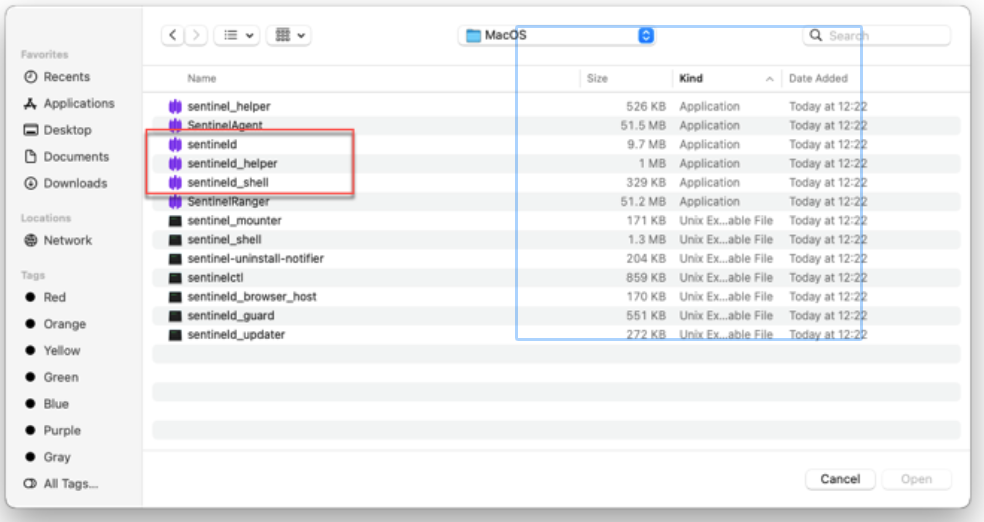
- Select the SentinelOne applications, and click Open:
- sentineld.app
- sentineld_helper.app
- sentineld_shell.app
- Settings should look like the below image. If this matches this portion is complete.
Step 2 - Authorize Full Disk Access
- Enter CMD + SPACE to open spotlight search and type Settings and then open System Settings
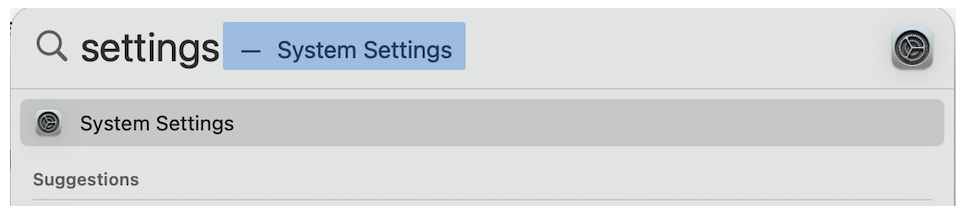
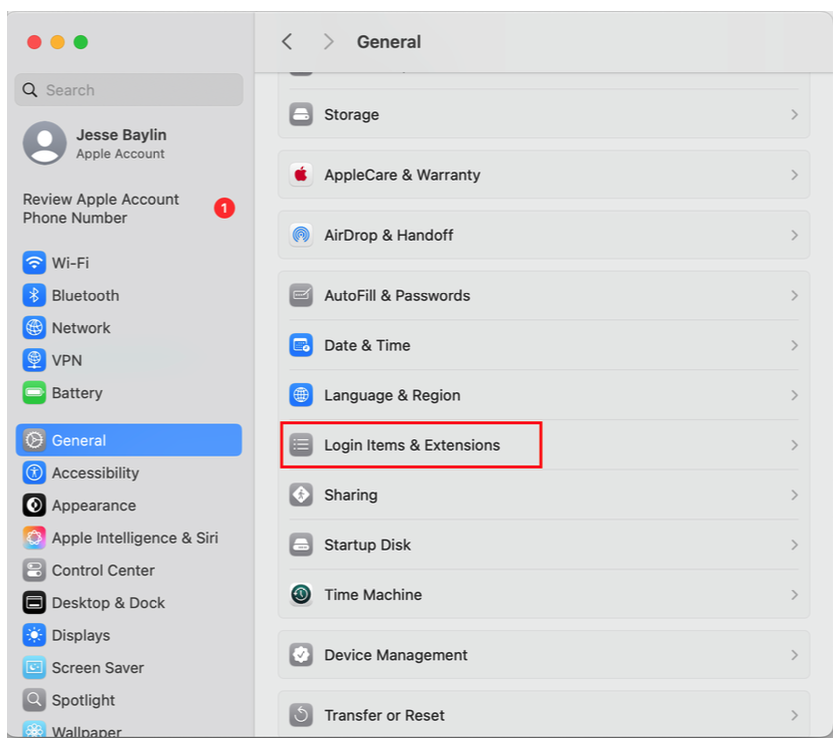
- Under General > Login Items & Extensions
- Go to Network Extensions and click the (i) Info button on the right side
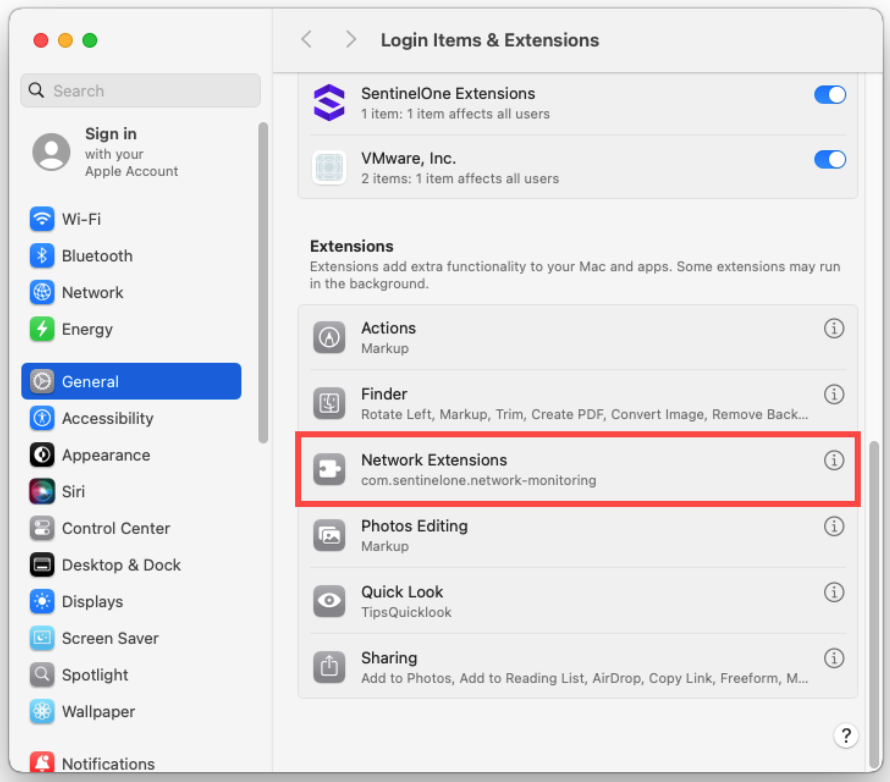
- Enable SentinelOne Extensions

- If a prompt appears asking to allow SentinelOne Extensions to filter network content. Click Allow.
To approve the network extension if blocked:
- If you see the System Extension Blocked message, click Open System Settings.
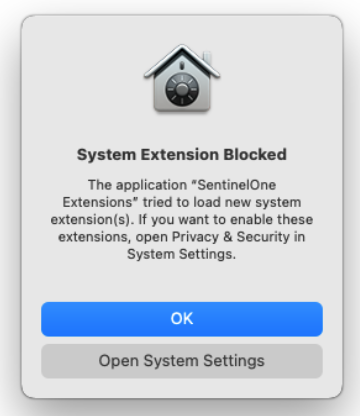
- Note: If you click OK, the window closes. To approve the SentinelOne Network Extension later, open System Settings > Privacy & Security > Security.
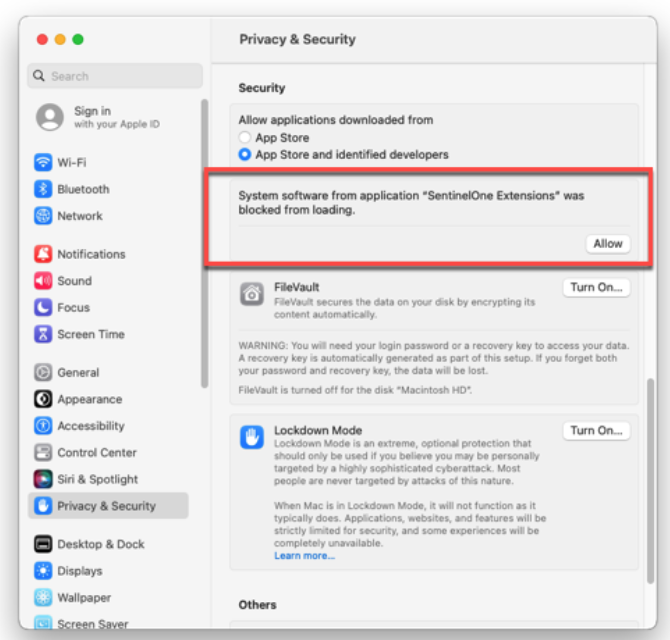
- In the window that opens, click Allow.